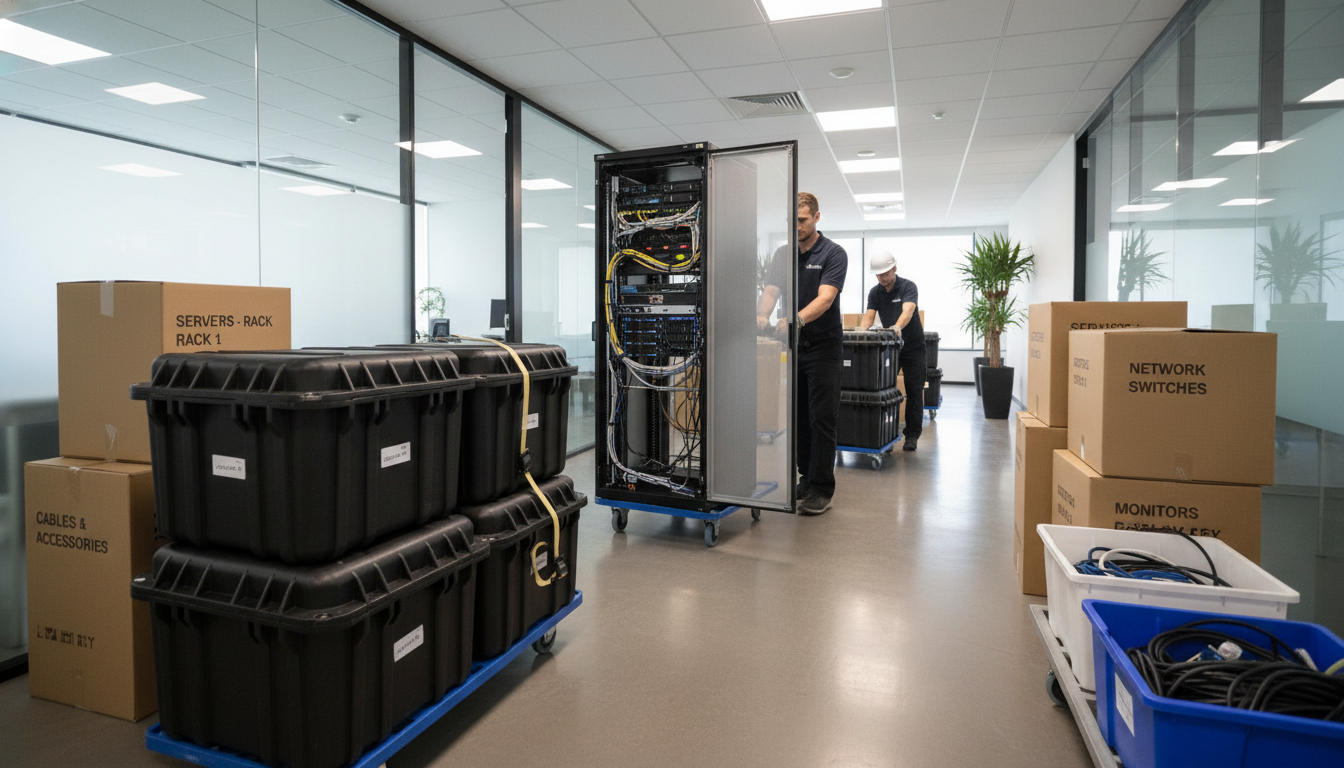
You have found the perfect new office, informed your staff and customers, and set a moving date. Now comes the most critical part — relocating your IT infrastructure without disrupting business operations. Get it wrong, and you could face days of downtime, lost data, and frustrated employees.
An IT office move is a multi-step process that requires careful planning and coordination between multiple parties. At Cloudswitched, we have managed dozens of IT relocations for London businesses — from 5-person startups to 200+ seat enterprises. Here is our proven 7-step framework to ensure a smooth, efficient move with zero data loss and minimal disruption.
The 7-Step IT Move Timeline
Before diving into the detail, here is an overview of the complete process with recommended timings:
| Step | Task | When | Priority | Key Stakeholders |
|---|---|---|---|---|
| 1 | Start Planning | 3-6 months before | Critical | IT Provider, Management |
| 2 | Equipment Evaluation | 2-3 months before | High | IT Provider, Finance |
| 3 | Assess Telecoms | 2-3 months before | High | IT Provider, ISP, Phone Provider |
| 4 | Site Visit & Survey | 6-8 weeks before | High | IT Provider, Cabling Company |
| 5 | Data Protection | 2-4 weeks before | Critical | IT Provider |
| 6 | Moving Day Preparation | 1 week before | High | All Staff, IT Provider |
| 7 | Setup, Testing & Go-Live | Day of move | Critical | IT Provider, Key Staff |
Step 1: Start Planning in Advance
The single biggest mistake businesses make with IT moves is not starting early enough. Many companies only think about their IT a few weeks before the move — by which point critical deadlines have already been missed.
Why 3-6 Months Lead Time?
Several aspects of an IT move have long lead times that cannot be rushed:
Fibre and leased line installations can take 3-4 months. If your new office needs a new fibre connection, order it immediately. Waiting until a month before the move almost guarantees you will be without internet on day one.
Initial Planning Checklist
- Appoint an IT move coordinator — a single point of contact between your business and IT provider
- Notify your IT provider — the earlier they are involved, the smoother the process
- Gather new office details — floor plans, building specifications, access arrangements
- Check the lease — understand what IT infrastructure exists and what needs installing
- Set a realistic timeline — work backwards from your move date to identify critical deadlines
- Establish a budget — IT relocation typically costs £5,000-25,000 depending on complexity
Step 2: Equipment Evaluation
An office move is the ideal time to audit and potentially upgrade ageing IT equipment. Moving old, unreliable hardware to a new office only to have it fail a few months later is a false economy.
Equipment Audit Framework
| Equipment Type | Typical Lifespan | Replace If | Replacement Cost (per unit) |
|---|---|---|---|
| Desktop PCs | 4-5 years | Over 4 years old, slow performance | £400-800 |
| Laptops | 3-4 years | Battery degraded, slow, no SSD | £500-1,200 |
| Servers | 5-7 years | Out of warranty, capacity issues | £2,000-8,000 |
| Switches | 7-10 years | No PoE, insufficient ports, end-of-life | £200-2,000 |
| Firewalls | 5-7 years | Expired licence, no threat protection | £500-3,000 |
| Printers/MFPs | 5-7 years | High maintenance cost, slow output | £300-2,000 |
| Monitors | 7-10 years | Small screen, no ergonomic adjustment | £150-400 |
| Wi-Fi Access Points | 5-7 years | No Wi-Fi 6, poor coverage | £200-800 |
Combining hardware upgrades with your office move saves money. You avoid paying for installation twice, reduce the amount of old equipment being transported, and your team starts fresh in the new office with modern, fast equipment.
Consider Cloud Migration
An office move is also the perfect trigger to consider migrating to the cloud. Instead of physically moving servers and network infrastructure, you could:
- Move email to Microsoft 365 — eliminate the on-premise Exchange server entirely
- Move files to SharePoint/OneDrive — no need for a file server at the new location
- Move servers to Azure — virtualise your entire server room in the cloud
- Switch to VoIP — replace physical phone lines with cloud-based telephony
This approach can dramatically reduce the complexity (and cost) of your IT move. Visit our Azure Cloud Server page to learn more.
Step 3: Assess Communication Options
Telecommunications is often the most time-critical element of an IT move. Plan your telecoms with future growth in mind — you do not want to outgrow your infrastructure within a year of moving.
Key Questions to Answer
| Question | Why It Matters | Action Required |
|---|---|---|
| What internet is available? | Determines your bandwidth options | Check fibre availability, order ASAP |
| How many users? | Determines bandwidth requirements | Plan for current + 20% growth |
| VoIP or traditional phones? | Affects cabling and line requirements | Evaluate VoIP savings and features |
| How many network points? | Determines cabling scope | One point per desk + extras for printers, APs |
| Wi-Fi requirements? | Coverage planning needed | Site survey for AP placement |
| Video conferencing needs? | Dedicated bandwidth allocation | Budget for QoS-enabled networking |
Internet Connection Comparison
FTTC Broadband
Leased Line
Step 4: Site Visit & Survey
The site visit is absolutely essential. Complete it with your IT support provider and a certified cabling company. This visit determines the physical layout of your entire IT infrastructure.
Site Visit Checklist
Server/Comms Room Requirements
If you are keeping on-premise servers, the comms room at your new office needs to meet specific requirements:
| Requirement | Minimum Standard | Why It Matters |
|---|---|---|
| Cooling | Dedicated air conditioning unit | Servers generate significant heat; overheating causes failures |
| Power | Dedicated circuit + UPS | Prevents power surges and provides battery backup |
| Physical Security | Locked door, restricted access | Prevents unauthorised access to hardware |
| Fire Suppression | Appropriate extinguisher type | Water-based systems destroy IT equipment |
| Cable Management | Patch panels & cable trays | Organised cabling prevents maintenance nightmares |
| Ventilation | Adequate airflow path | Hot air must have an escape route |
Step 5: Data Protection
IT office moves present unavoidable risk to your data. Equipment is being physically transported, systems are being powered down, and there are multiple opportunities for something to go wrong. This step is non-negotiable.
Backup Strategy for Moving Day
Consider a temporary cloud backup solution during the move. Even if you normally use local backups, having a cloud copy during transit provides an extra safety net for your critical data. Services like Azure Backup or Veeam Cloud Connect can be set up temporarily for just this purpose.
Data Protection Checklist
- Full backup of all servers — verified with test restore
- User data backup — local files on employee PCs
- Email backup — complete mailbox export
- Database backup — with integrity check
- Application configurations — documented and backed up
- Network configurations — firewall rules, DHCP, DNS exported
- Licence keys — all software licence keys documented
- SSL certificates — backed up with private keys
Step 6: Get Ready for Moving Day
In the final week before the move, everything needs to come together. This is where careful planning pays off — and where lack of planning becomes painfully obvious.
Final Week Checklist
| Day | Task | Responsible |
|---|---|---|
| Mon (T-5) | Final backup verification, test restores | IT Provider |
| Tue (T-4) | Label all cables, equipment, and boxes | IT Provider + Staff |
| Wed (T-3) | Set up call forwarding, update voicemail | Office Manager |
| Thu (T-2) | Staff briefing on shutdown procedures | IT Provider |
| Fri (T-1) | Controlled shutdown, disconnect, pack | IT Provider |
| Sat (Move Day) | Physical transport, setup begins | IT Provider + Movers |
| Sun (T+1) | Complete setup, testing, ready for Monday | IT Provider |
Never let general office movers handle IT equipment. They are not trained to handle sensitive electronics. Servers, switches, and firewalls should be transported separately by your IT provider or a specialist IT logistics company.
Staff Communication
Your team needs clear instructions for moving day. Send a communication covering:
- Shutdown procedure — how and when to power down their equipment
- Personal files — ensure everything is saved to network drives, not local desktops
- Labels — each person labels their peripherals (keyboard, mouse, headset)
- Day one expectations — what time to arrive, what will be ready, who to contact for issues
- Temporary arrangements — if working from home during the transition, provide VPN details
Step 7: Moving In & Getting Set Up
This is the most intricate and time-sensitive step. A well-planned setup means your team walks in on Monday morning and everything just works. A poorly planned one means days of chaos.
Setup Priority Order
Day One Testing Checklist
IT Move Cost Breakdown
Understanding what an IT move costs helps you budget accurately and avoid unpleasant surprises. Costs vary significantly based on the size and complexity of your setup.
Cost Factors for a Typical SME (20-50 Users)
Total Cost Ranges
| Business Size | Budget Range | Typical Duration |
|---|---|---|
| Small (5-15 users) | £3,000-8,000 | 1-2 days |
| Medium (15-50 users) | £8,000-25,000 | 2-5 days |
| Large (50-200 users) | £25,000-75,000 | 1-2 weeks |
Common IT Move Mistakes to Avoid
Mistake 1: Leaving Internet Installation Too Late
This is the number one cause of IT move disasters. Leased lines and fibre installations have lead times measured in months, not weeks. Order your new connection the moment you sign the lease.
Mistake 2: Not Labelling Cables
In the chaos of a move, unlabelled cables turn into an expensive puzzle. Every cable should be labelled at both ends before disconnection. Your IT provider should use a standardised labelling system.
Mistake 3: Forgetting About DNS and IP Changes
If your external IP address changes (it almost certainly will), DNS records for email, websites, and VPNs need updating. DNS propagation can take up to 48 hours — plan for this.
Mistake 4: No Fallback Plan
What happens if the internet is not ready at the new office? A good IT move plan includes a 4G/5G mobile broadband failover solution to keep critical services running while waiting for the permanent connection.
Mistake 5: Moving Old Problems to a New Office
If your IT is already struggling with slow performance, security gaps, or unreliable backups, moving it to a new building does not fix those problems. Use the move as an opportunity to address existing issues.
The most cost-effective approach is often to migrate what you can to the cloud before the move. Move email to Microsoft 365, files to SharePoint, and servers to Azure — then you have far less physical equipment to relocate, and your team can keep working during the transition.
Frequently Asked Questions
Can we keep working during the IT move?
With proper planning, yes. The most common approach is to move over a weekend: controlled shutdown on Friday evening, transport and setup on Saturday, testing on Sunday, and go-live on Monday morning. For cloud-based businesses, staff can work from home during the physical move.
Do we need to inform our ISP?
Yes, and well in advance. You may need to transfer your existing service, order a new one at the new location, or both. If you have a leased line, the process takes 6-16 weeks.
What about our phone numbers?
In most cases, you can port your existing phone numbers to the new location. If switching to VoIP, the numbers transfer seamlessly. Traditional line transfers may take 1-2 weeks to process.
Should we upgrade hardware during the move?
If equipment is over 3-4 years old, yes. It is far more cost-effective to replace during a move than to transport old equipment, set it up, and then replace it months later.
Let the Professionals Handle It
"Cloudswitched managed our entire IT relocation from Canary Wharf to our new City of London office. We had 45 staff online and working by 9am Monday morning. It was completely seamless." — Legal firm, City of London
Your IT setup is the powerhouse behind your business. Poorly executing your IT move can result in major operational and financial damage. If you want complete peace of mind, contact our team to discuss your move. We handle every aspect of IT relocation — from planning and procurement through to installation, testing, and post-move support — so you can focus on settling into your new space.
Ready to Get Started?
Planning an office move? Cloudswitched manages every aspect of your IT relocation, from infrastructure planning and procurement through to installation, testing, and post-move support.
Explore IT Office Move Services
CloudSwitched
London-based managed IT services provider offering support, cloud solutions and cybersecurity for SMEs.


